Lesson
Drive Efficiency With Webhook Alternatives
While webhooks are powerful, they are not always the most efficient tool for every job. For a number of common use cases, it’s easier to use native Braze capabilities instead of sending webhooks.
Using Braze capabilities has a number of advantages over standard webhooks:
- Braze can optimize processing for maximum speed and efficiency.
- Native Braze tools are easier to use and require less troubleshooting.
- Native Braze tools don’t expend message credits.
Updating User Profiles
It’s common to want to update a user's profile based on their behavior in a Canvas—for example, you want to change a custom attribute to "true" after they receive a specific email, or increment a counter every time they go through a Canvas.
This is best done using the User Update step in Canvas. This native step is easy to use for marketers, in most cases not requiring any knowledge of JSON. Users are processed through the Canvas journey in the correct order—a User Update step will progress to the next step in a Canvas once a user has been updated, whereas a webhook may not have such precise timing. The User Update step is also processed internally by Braze, allowing for higher throughput compared to the standard API rate limits.
Update users with a User Update step
- In your Canvas flow, add a step and select the User Update step.
- Simple Updates: Use the standard UI editor to select an attribute (e.g.,
has_received_welcome_email) and set the value (e.g.,true). - Complex Updates: Switch to the Advanced JSON Editor. This allows for updating custom events. You can also use Liquid to perform logic, such as incrementing a number or capturing a timestamp, and update the profile accordingly.
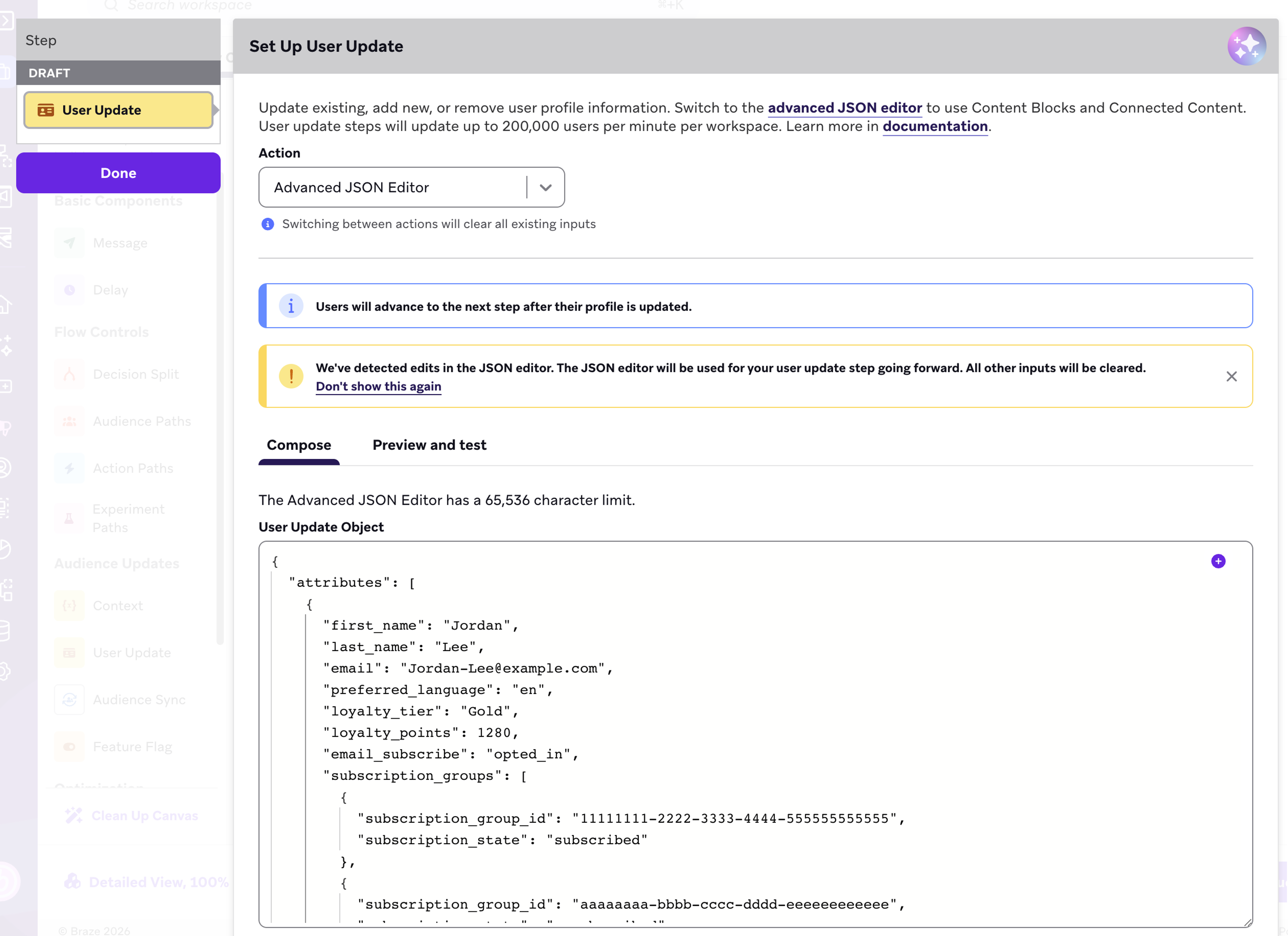
The JSON in this step is very similar to the /users/track endpoint syntax, which means you can harness all the flexibility of that endpoint.
For example, a common task is to update a user’s subscription status. You can nest this information within the user attributes object in the call:
{ "attributes":
[ {
"subscription_groups":
[ {
"subscription_group_id": "SUBSCRIPTION_GROUP_ID",
"subscription_state": "subscribed"
} ]
} ]
}
Linking Canvas journeys
Sometimes, you need to send a user from one Canvas into another. This is especially common if you have multiple flows that might result in the same set of actions. Rather than recreating the same steps in each of those Canvases, you can have one central Canvas that users are entered into.
For example, there may be multiple ways that a user can submit a negative review, but you want to send them into a single Canvas that attempts to improve their sentiment or put them in touch with support.
You can link your Canvases without leaving the Braze dashboard by using the Send to Destination Step in Canvas. This sends users to a second Canvas. As long as they meet the entry criteria for the Canvas, they’ll enter the second Canvas flow.
Personalizing Delays
Another common use case for linking two canvases is to schedule a message for a later, personalized date for each user. For example, you might want to send a message to a user 24 hours before their next flight, but this should be personalized for each individual user. With the Personalized Delays feature, you can easily create custom delays inside of Braze using a user-friendly, native Braze interface.
Build a personalized delay
Reporting For Control Groups
If your organization uses Currents for reporting, you may want to track how a user moves through complex Canvases. You may want to track exactly when a user passes a specific point in a workflow, or you want to track the actions of a control group in a way that parallels the steps in the treatment group in the Canvas.
This has sometimes been handled by sending a webhook to a dummy website so that it generates a webhook sent (users.messages.webhook.send) event in your Currents data.
However, sending network traffic just to create a timestamp is inefficient and you may be able to generate the same analytics data using the User Update step to log a custom event without sending a message.
This alternative to webhooks for recording control groups may not work for every configuration. You may wish to discuss this solution with your Braze contacts to ensure that it will work for your use cases.
Record analytics with User Updates
Generally, in order to get detailed control group data, you’ll create two parallel Canvas paths. Your treatment path is your normal flow. You’ll create a control group path that will duplicate the treatment path, but replace all of the message steps with User Update steps. Each User Update step will add a custom event to a user’s profile, which creates a record that can be exported in Currents. Everything else will be the same in the two paths, including Delay Steps.
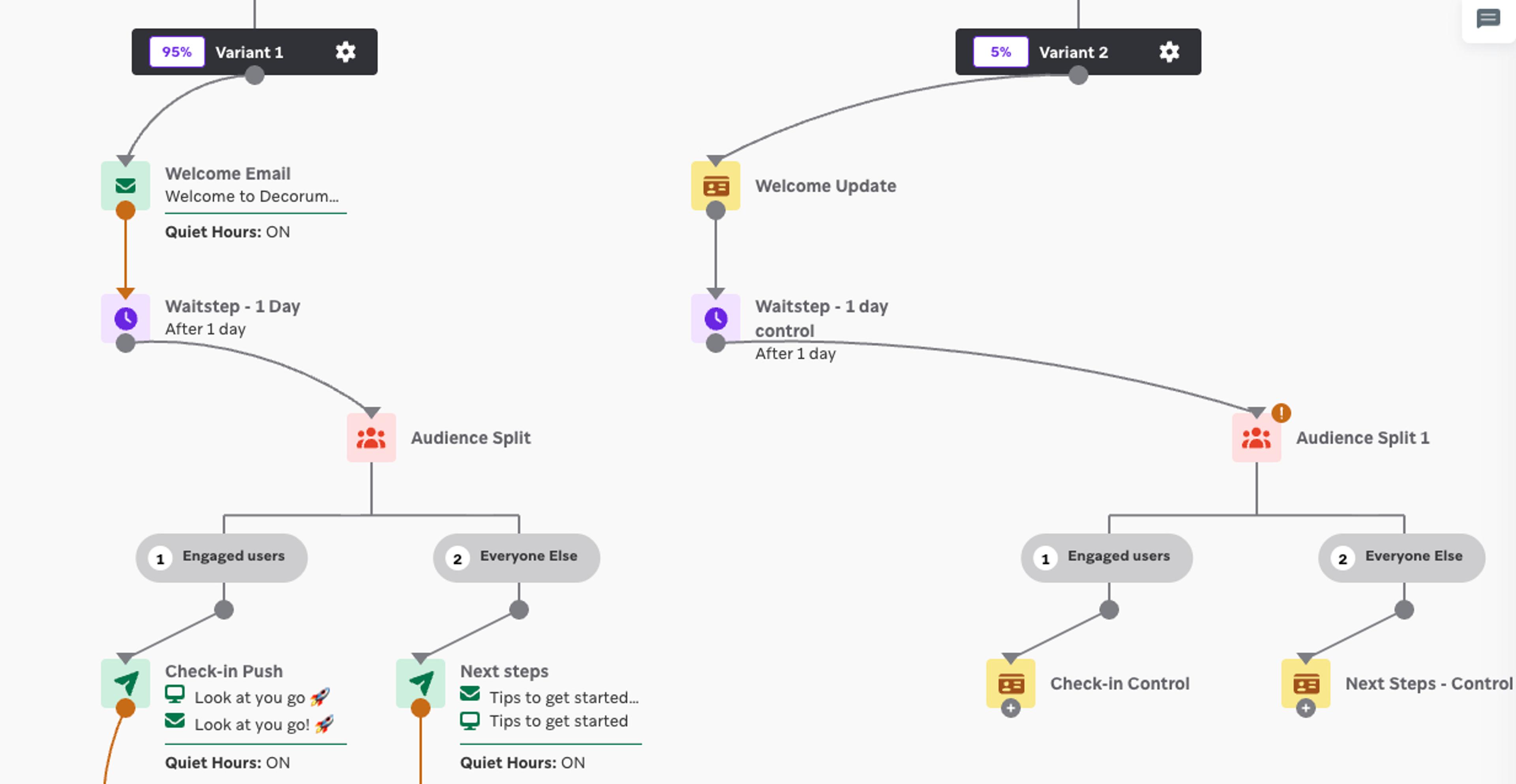
- For this purpose, when you build the Canvas, use a Variant instead of a standard control group for your analytics control.
- Once your Canvas path is constructed, make a parallel path. Replace Message Steps with User Update steps. Keep delay steps. You can build in Audience Paths or Action Paths depending on your analytics needs.
- For the User Updates step, use the Advanced JSON Editor to log a custom event, such as
entered_control_grouporreached_step_5. You can include properties as needed.
{
  "events": [
    {
      "name": "entered_control_group",
      "time": "{{'now' | date: '%Y-%m-%dT%H:%M:%SZ'}}"
    }
  ]
}
This event will appear in your Currents data and Braze reporting just like a webhook event, allowing you to track conversion rates or funnel progression without the risk of API errors or costs associated with high-volume HTTP requests.