Lesson
Use Case 3: Triggering From Project Management Tools
Challenge to solve: How to connect your familiar tools to Braze to automate common tasks.
In this example use case, we'll explore how you can report key data to stakeholders using the following elements:
- External tools that can send webhooks
- Data Transformations
- Braze Canvas as an automation engine
- Braze Catalogs
- External APIs
Use Case Outcome
This use case shows you how to trigger a Canvas which automatically translates a phrase into a language of your choice.

External Tool: Google Sheets
Many tools that are part of your workstream can send webhooks. Project management tools, for example, can often a webhook after a item is marked as complete.
In this case, we're using a Google sheet which contains our string to be translated.
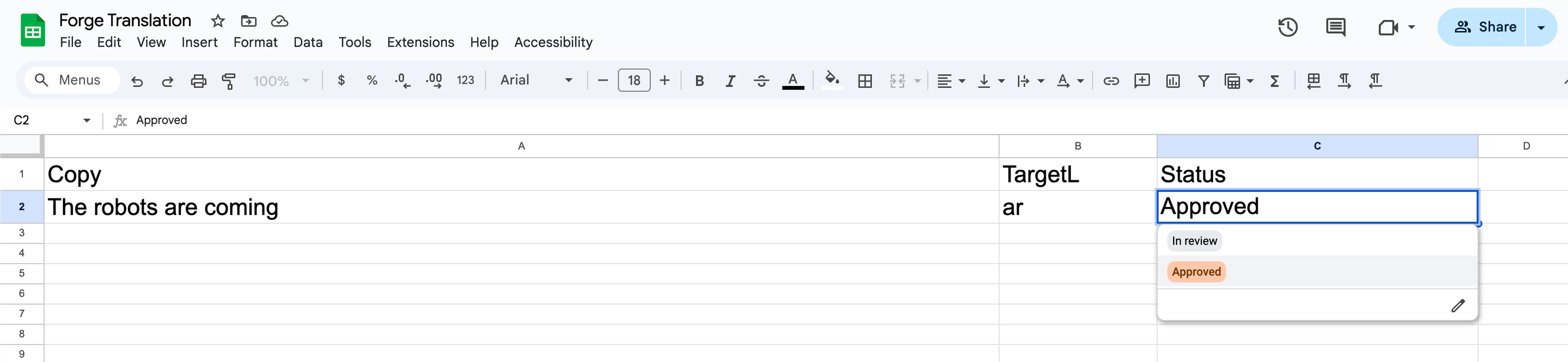
We can create an AppScript that will send a webhook to Braze when the status is changed to Approved. An excerpt of the code that sends the webhook:
 var options = {
        'method': 'post',
        'contentType': 'application/json',
        'payload': JSON.stringify(payload)
    };
    UrlFetchApp.fetch(endpointURL, options);
  }
Your organization may limit or control your ability to send webhooks from your project management software. You may need to speak with your organization's cybersecurity team when building this type of automation.
Data Transformation
Once the data is sent to Braze, a very simple data transformation is used to:
- Trigger a Canvas
- Pass on the relevant information
let brazecall = {
  // "canvas_id" determines the canvas that this transformation should trigger. Obtain this from your API triggered canvas.
  "canvas_id": "864c952d-1ce8-41b7-9054-e808883ec1ca",

  /****** Pass along the language and copy ******/
  broadcast : true,
  "canvas_entry_properties": {
        "Copy" : payload.Copy,
        "TargetL" : payload.TargetL
      }
};

// After the /canvas/trigger/send request is assigned to brazecall, you will want to explicitly return brazecall to create an output.
return brazecall;
Canvas Automation
To actually automate the translation, we create an API triggered Canvas with a single utility user profile. This is the only user who will enter the Canvas. We also need to make sure there is no control group for the Canvas, or our message might not send.
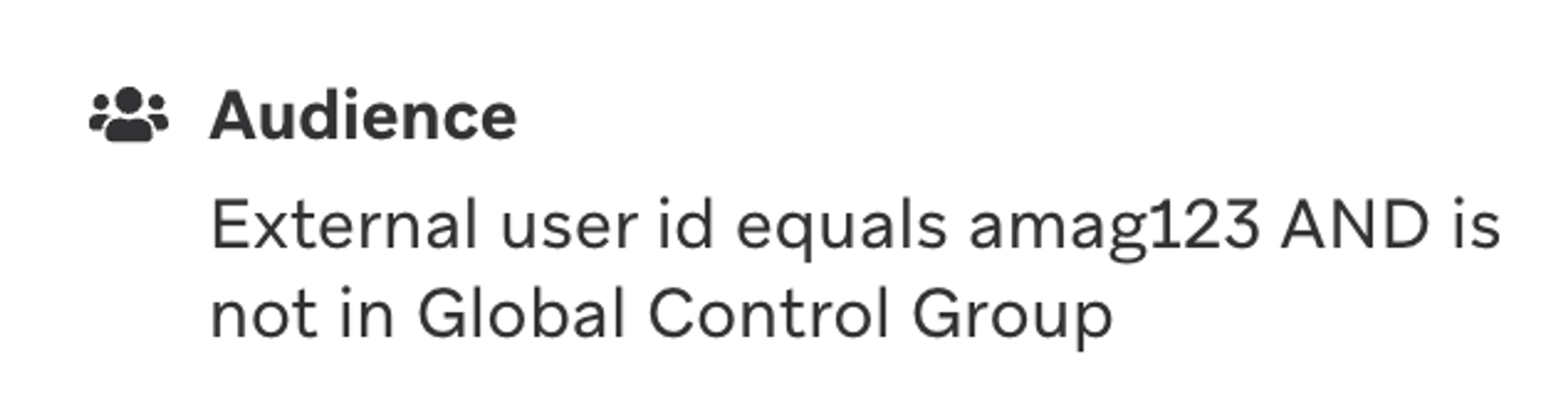
We could potentially use just a single Campaign for this automation, but we may want to perform multiple steps, so a Canvas is a more extensible tool.
We add two steps to the Canvas, a Context step, then a Webhook.
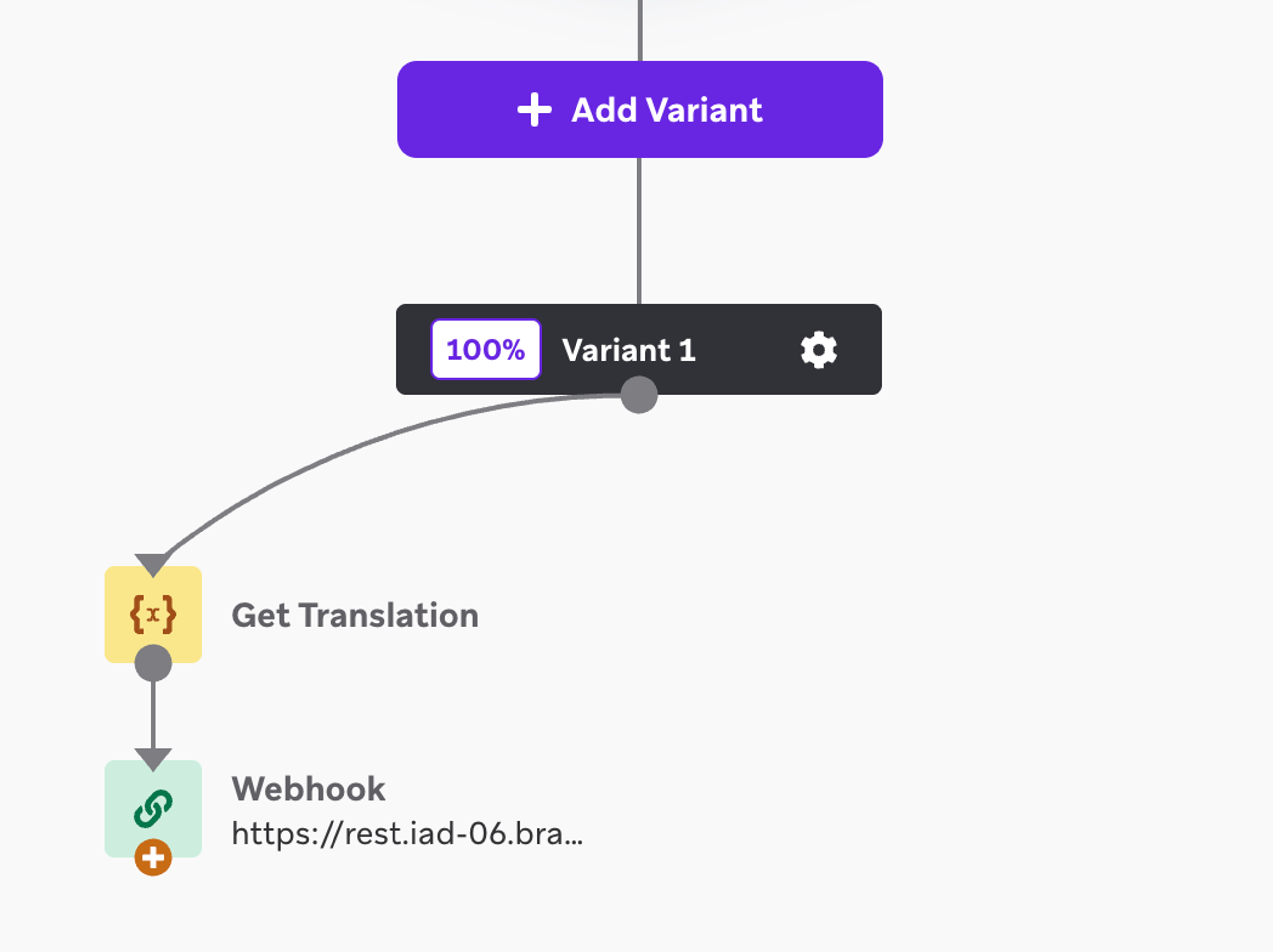
Context Step: Translation
A Canvas Context step sets a variable that can be used throughout the Canvas. In setting this variable, you are allowed to use Connected Content. In this case, we'll use the Connected Content call to translate the Copy data we passed via the Data Transformation, and store it in a variable called TranslatedCopy.
1{% capture body_liquid %}
2{
3    "text": ["{{context.${Copy} | default: '"Hello world!"'}}"],
4    "target_lang": "{{context.${TargetL} | default: 'fr'}}"
5}
6{% endcapture %}
7{% connected_content 	https://api-free.deepl.com/v2/translate
8:method post
9:headers {
10       "Content-Type": "application/json",
11       "Authorization": "DeepL-Auth-Key 12345"
12     }
13:body {{body_liquid}}
14:save trans
15%}
16{{trans.translations[0].text}}
The {% capture %} clause is used to make it easier to create a variable when there are quotation marks involved. The variable we're creating with the capture clause is the body of a API call to a translation service. The text and target language are drawn from the Context variables that we passed through via the Data Transformation.
We're using a free translation service that responds to a request by translating the text into our desired language and returning a JSON object with that translation.
All of the code until line 15 does not actually produce any output. By rendering the liquid object in the last line, the output of that Liquid statement is what is assigned as the value of our TranslatedCopy variable.
This is a simplified example for training purposes. In a real-world, production-level translation process, you should always have a human involved for quality control.
Updating a Catalog
There are several different ways to handle translated material in Braze. You can use the built-in multi-language support which also has API support. However, for simplicity and ease of showing the results, we use a standard Braze Catalog to store our translation strings.
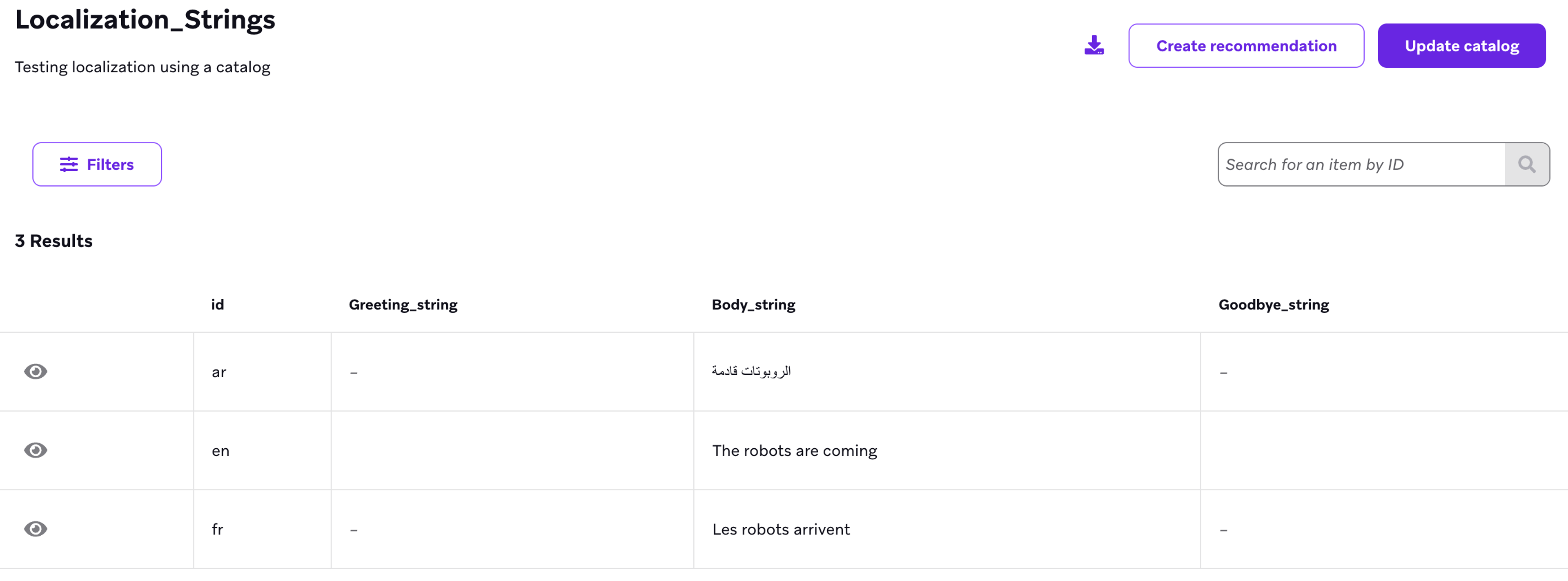
To update this catalog, the second step in the Canvas is a webhook to the /catalogs replace item endpoint. This will replace any existing text with our latest translation.
The webhook itself is quite simple. The id of the item to replace is included in the URL. In this case, we can add {{context.${TargetL}}} to the end of the URL to have it update the item in the appropriate language.
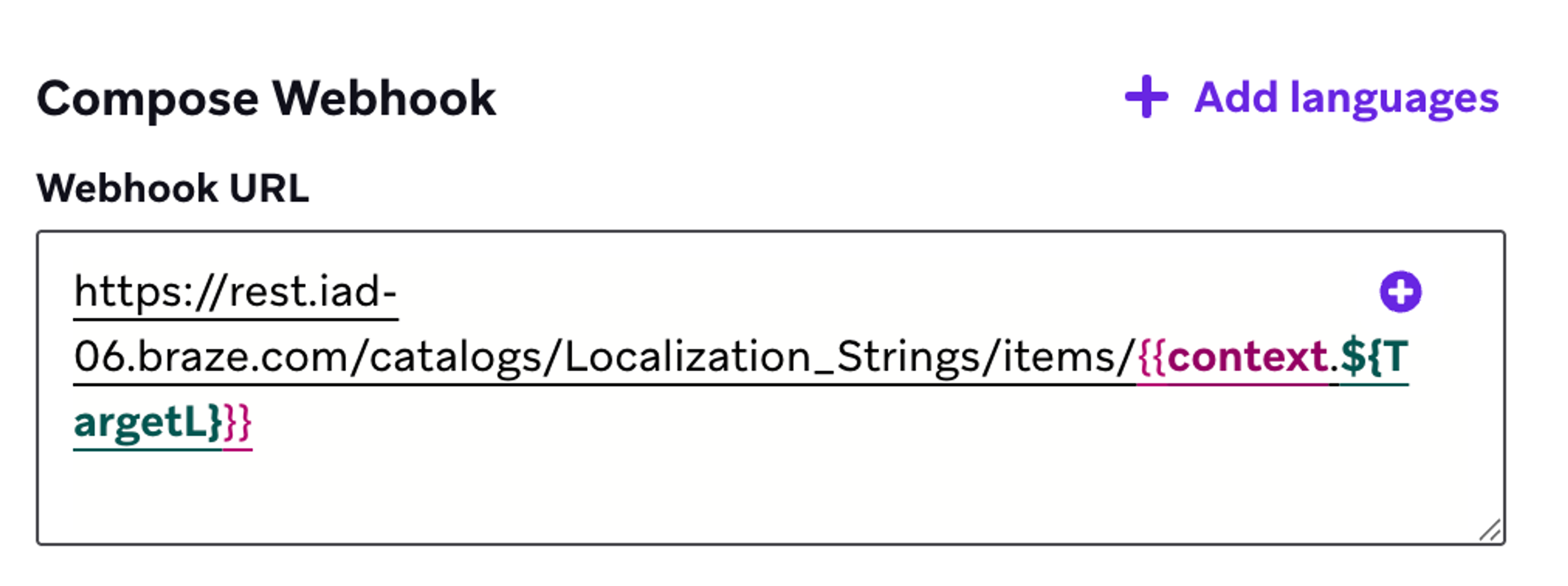
Then the webhook body passes the translated string to update the copy.
{
  "items": [
    {
      "Body_string": "{{context.${TranslatedCopy}}}"
    }
  ]
}
When the Google sheet is changed, it send the webhook to the Data Transformation, which triggers this Canvas. We could add another webhook step to trigger the email campaign with the message, if desired.
Email Composition
The email simply uses a Catalog selection that matches the language to the user's own language.
The Catalog selection is configured in the Catalog itself.

In the email itself, the Catalog selection is brought in via Liquid.
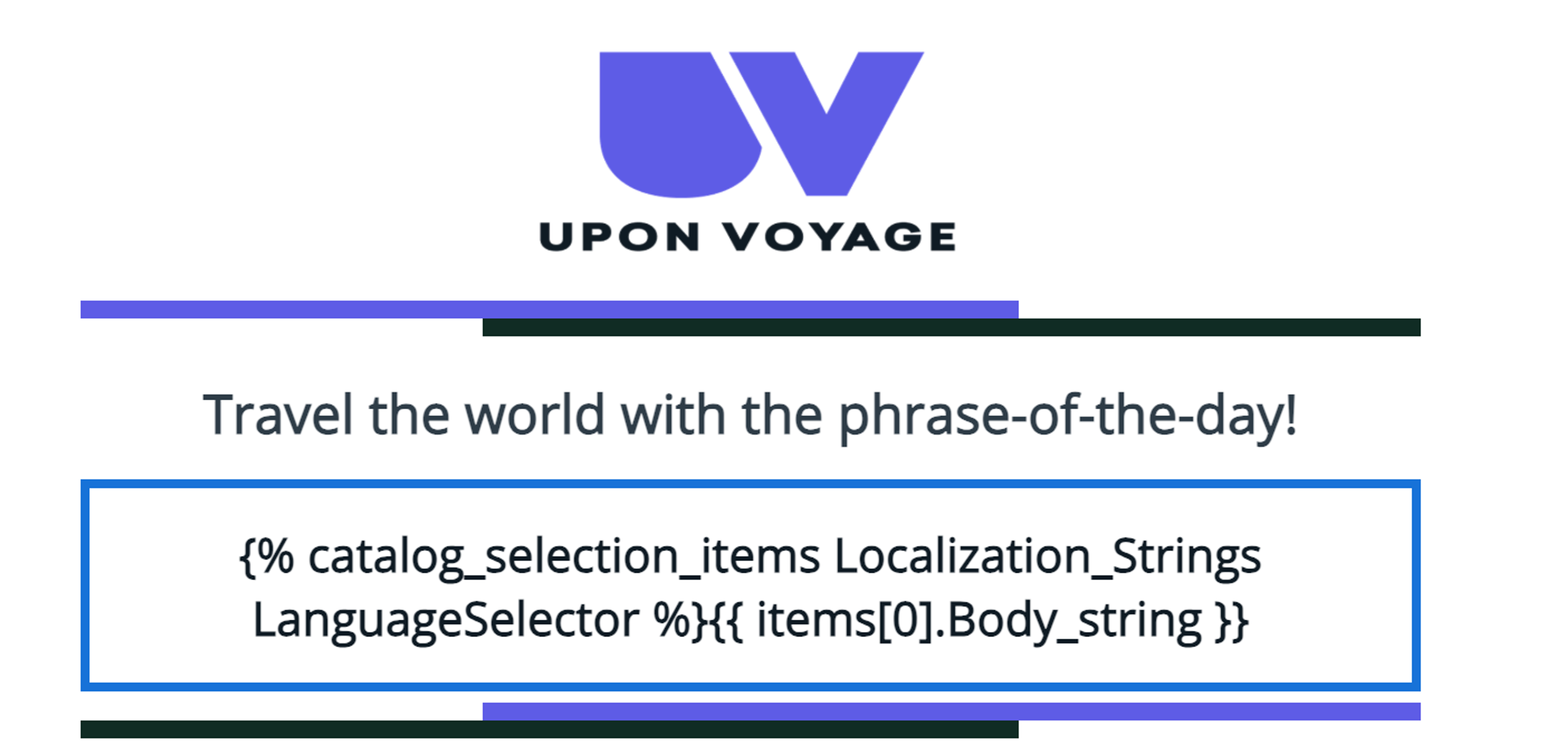
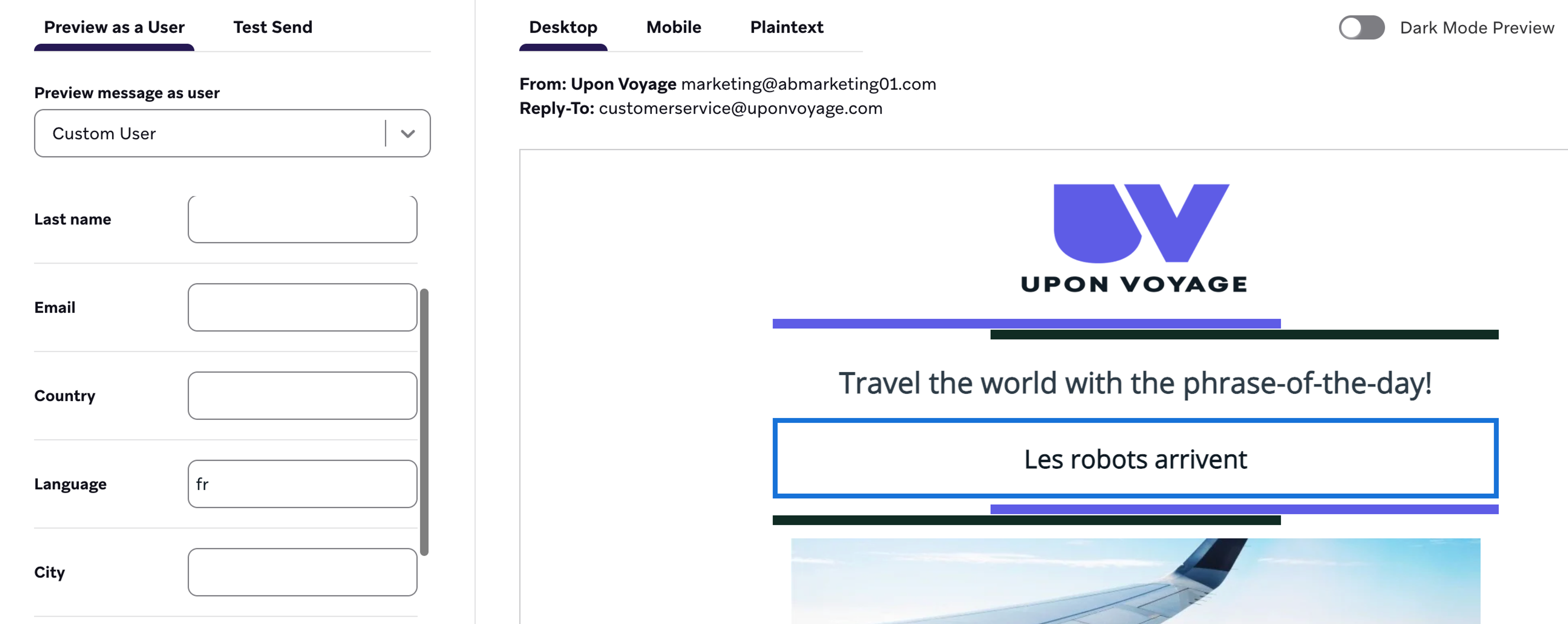
{% catalog_selection_items Localization_Strings LanguageSelector %}{{ items[0].Body_string }}Finally, to check if the whole process works, we can use the Preview and Test tool with a Custom User, setting Language to the appropriate value.